Advanced
🏝️ Dynamic Island
The dynamic island is the control bar at the bottom of the canvas page. It stays hidden until your cursor reaches the bottom edge of the screen, and every canvas action starts here.
Turn the multi-stream setup you are watching into a single link — whoever opens it sees the same line-up.
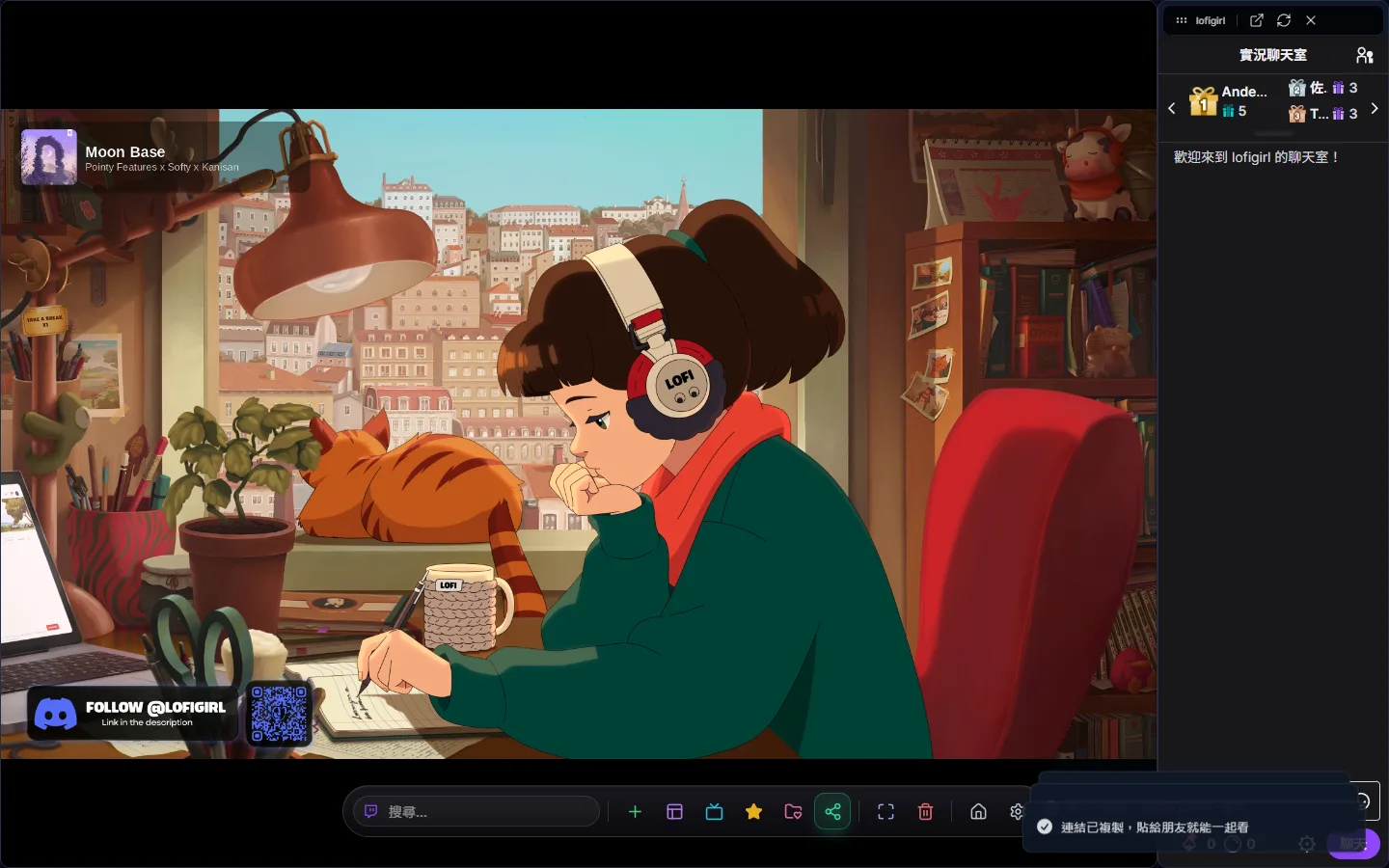
Press the share button on the dynamic island (inside the opened menu in Edge Dock mode; on phones, in the title bar at the top in portrait — the title bar is hidden in landscape). The current canvas is turned into a link and copied to your clipboard, ready to paste to a friend. If nothing is on the canvas yet, you are reminded to add a stream first; if the browser does not allow clipboard access, a box pops up so you can copy the link by hand.
The link looks like this: /canvas?streams=tw:channel,yt:videoId. tw means Twitch, yt means YouTube, separated by commas; if the canvas has a chat window, chat=1 is tacked on the end. One link holds at most 16 streams and ignores anything beyond that. You never have to build this by hand — the share button does it. It is spelled out here just so the URL is not a mystery.
The link records only which channels to watch — not volume, mute state or window coordinates. Whoever opens it gets the default arrangement. A YouTube stream can only be written into the link when that window has a video ID (channel pages do not have one), so links go stale once a broadcast ends. That is expected.
You have the official broadcast and three player views arranged and want a friend to see the same set. Press the share button on the dynamic island, wait for the “link copied” message and paste it into your group chat. When your friend opens it, their canvas switches to those four streams in the default layout; if your canvas had a chat window, they get a chat for each stream.