Basics
Quick Start Guide: From Adding Streams to Auto Layout
New to MultiStream Hub? This guide walks you through adding your first stream from a URL, then searching channels, switching layouts, and integrating chat.
How to use the Taiwanese VTuber stream schedule, what each card means, where the data comes from and how often it updates, and which streams can be missing or late.
The stream schedule puts Taiwanese VTubers’ YouTube and Twitch streams on one page and answers three questions: who is live right now, who goes live in the next 7 days and at what time, and who just ended. When you spot someone you want to watch, click their card to open them on the MultiStream Hub canvas, or tick several and open them together. No account is needed — just open the Stream Schedule page.
By default the schedule shows streamers from Taiwan only. Use the toolbar to switch to Hong Kong, Malaysia, Japan or Other, or pick All regions.
Say the group you follow has a collab tonight and every member streams on their own channel. Here is the whole flow from the schedule to a multi-stream canvas:
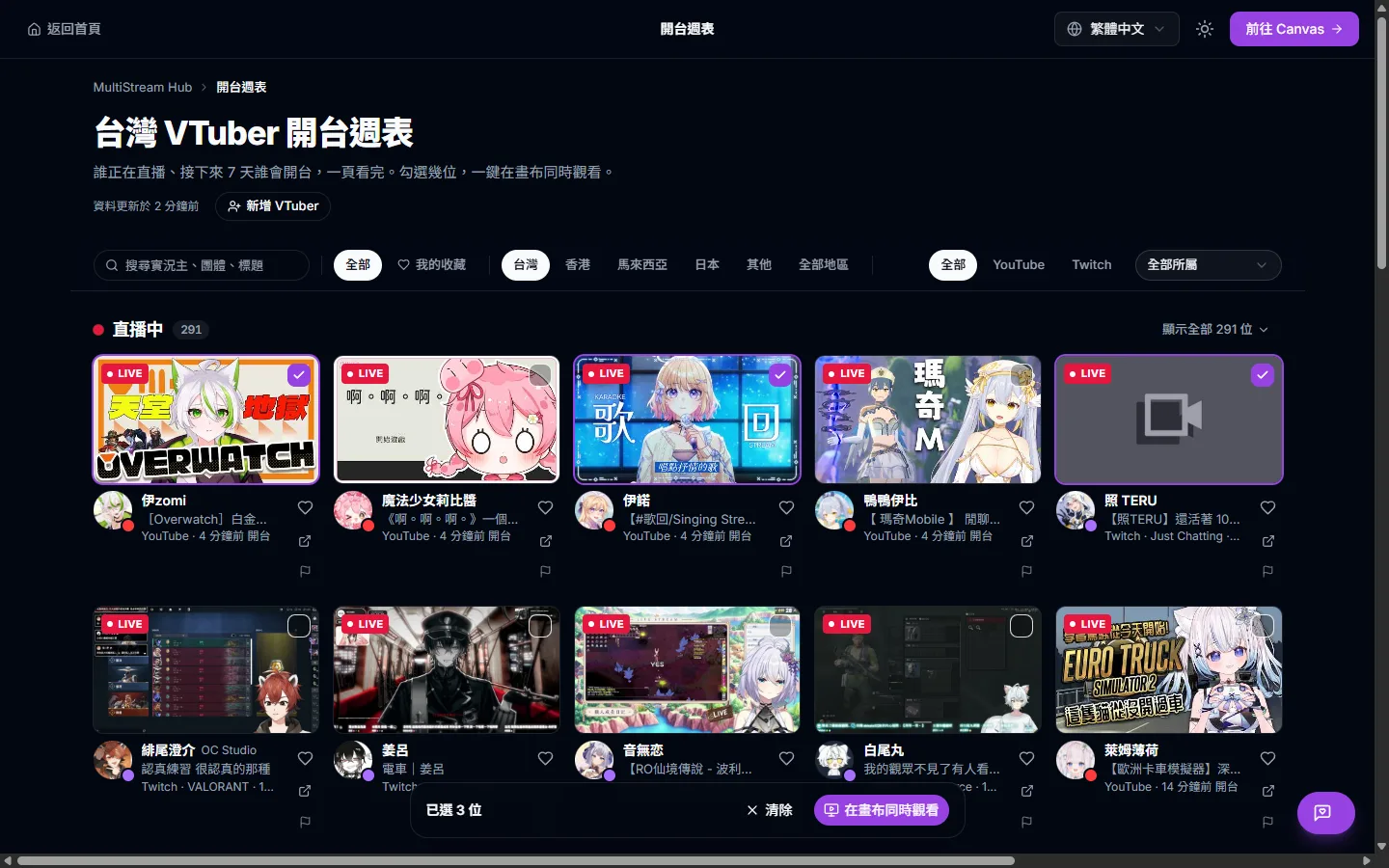
The canvas plays at most 16 streams at once. If you tick more than the free slots, the bar warns “The canvas holds 16 streams; N more will fit”, and pressing the button only fills the free slots — the rest are not added. If several streams from the same Twitch streamer are ticked, that channel is added only once, so fewer streams may be added than you selected.
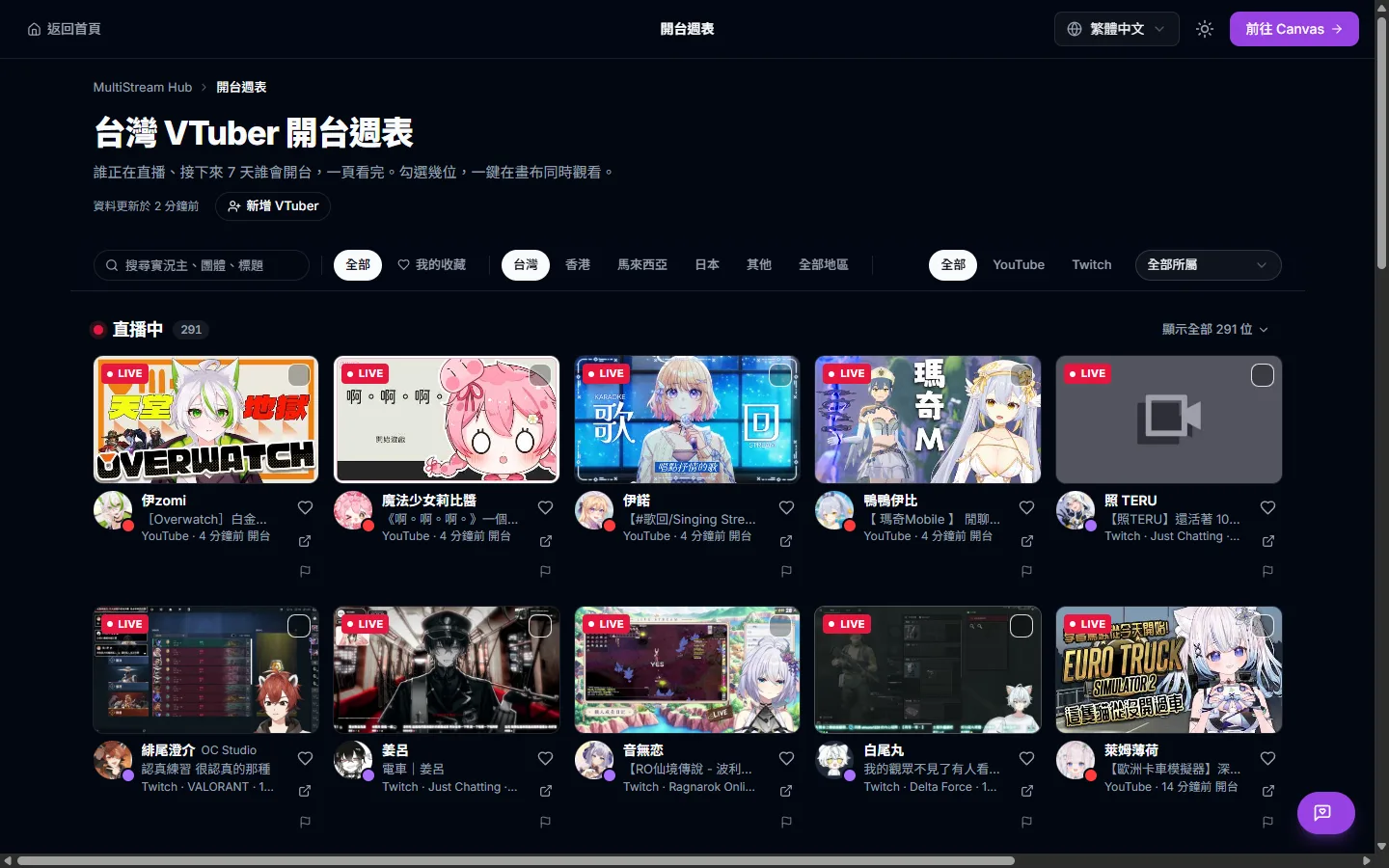
The schedule has three sections from top to bottom. Live now lists streams that are on air, newest first; 10 are shown by default and “Show all” expands the rest. Each card shows the platform, the game category and how long ago the stream started. Viewer counts are not shown.
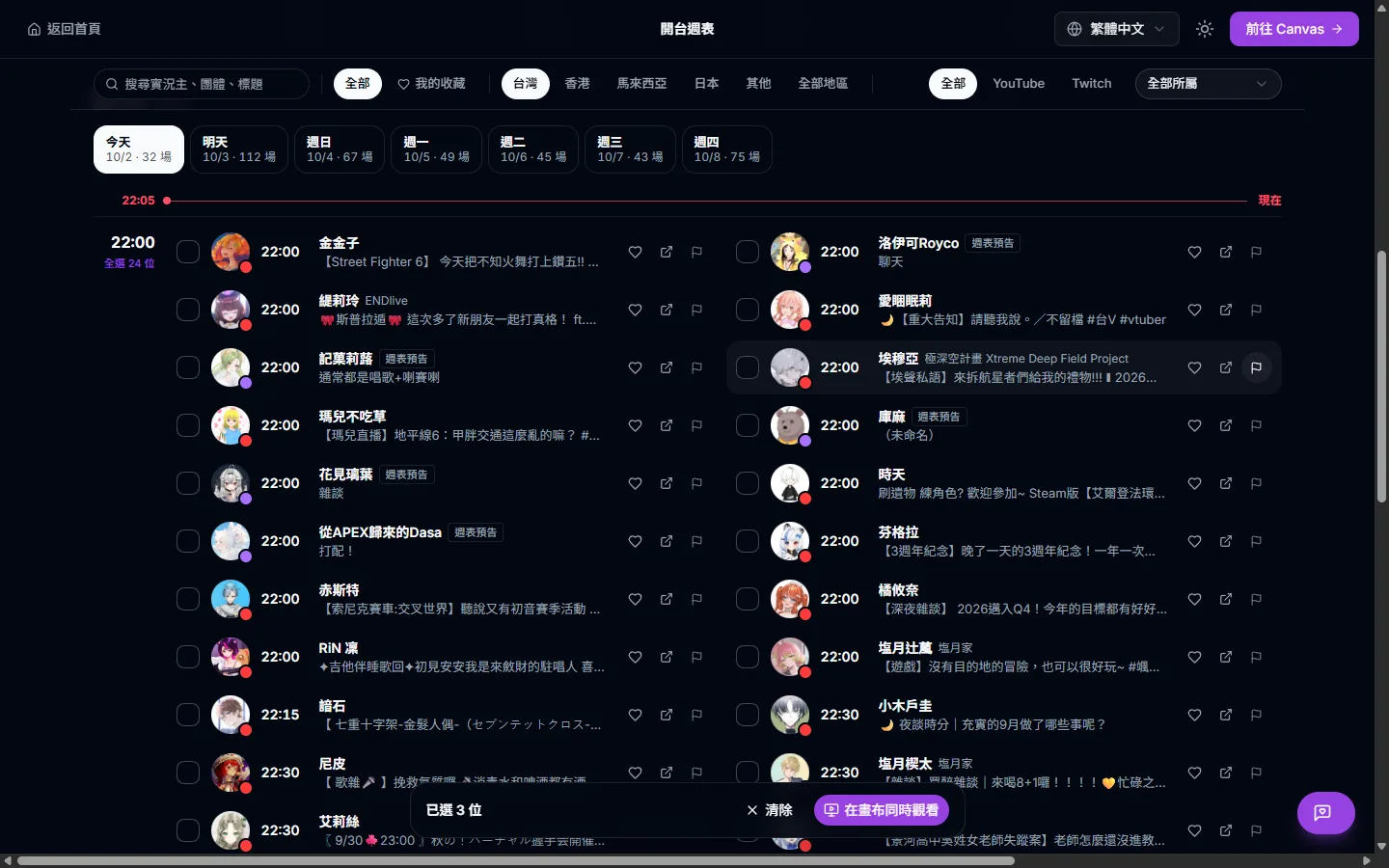
Coming up covers the next 7 days from now as a timeline: the date tabs at the top show how many streams each day has, the hours run down the left, and each hour lists its streams. Today has a red line for the current time, and hours that have already passed are dimmed. A stream that has not been detected as live 15 minutes after its scheduled time drops out of this section.
Just ended lists streams that ended in the past 12 hours. You can click them to watch on the canvas, but you cannot tick them.
When the same streamer starts on YouTube and Twitch within 30 minutes of each other, the schedule treats it as one stream, merges it into a single card and labels it “Also on Twitch” or “Also on YouTube”. Clicking the card opens the primary stream: status is compared first — live beats just ended, which beats scheduled — and only when the status is the same does YouTube win. So if the Twitch stream is already live while YouTube is still a waiting room, the card opens Twitch.
Cards marked “Twitch schedule” (the label is hidden on timeline rows on phones) come from the schedule a streamer set on Twitch rather than an actual stream, so the streamer may change it at short notice. All times are shown in your device time zone in 24-hour format.
Click a streamer’s name on any card to open their personal schedule page. The header shows the avatar, agency and region, and links to their YouTube and Twitch channels. Below that come Live now, Next 7 days and Last 90 days. The history shows 10 streams by default and can be expanded; every entry can be opened on the canvas, or on the original platform through the link beside it.
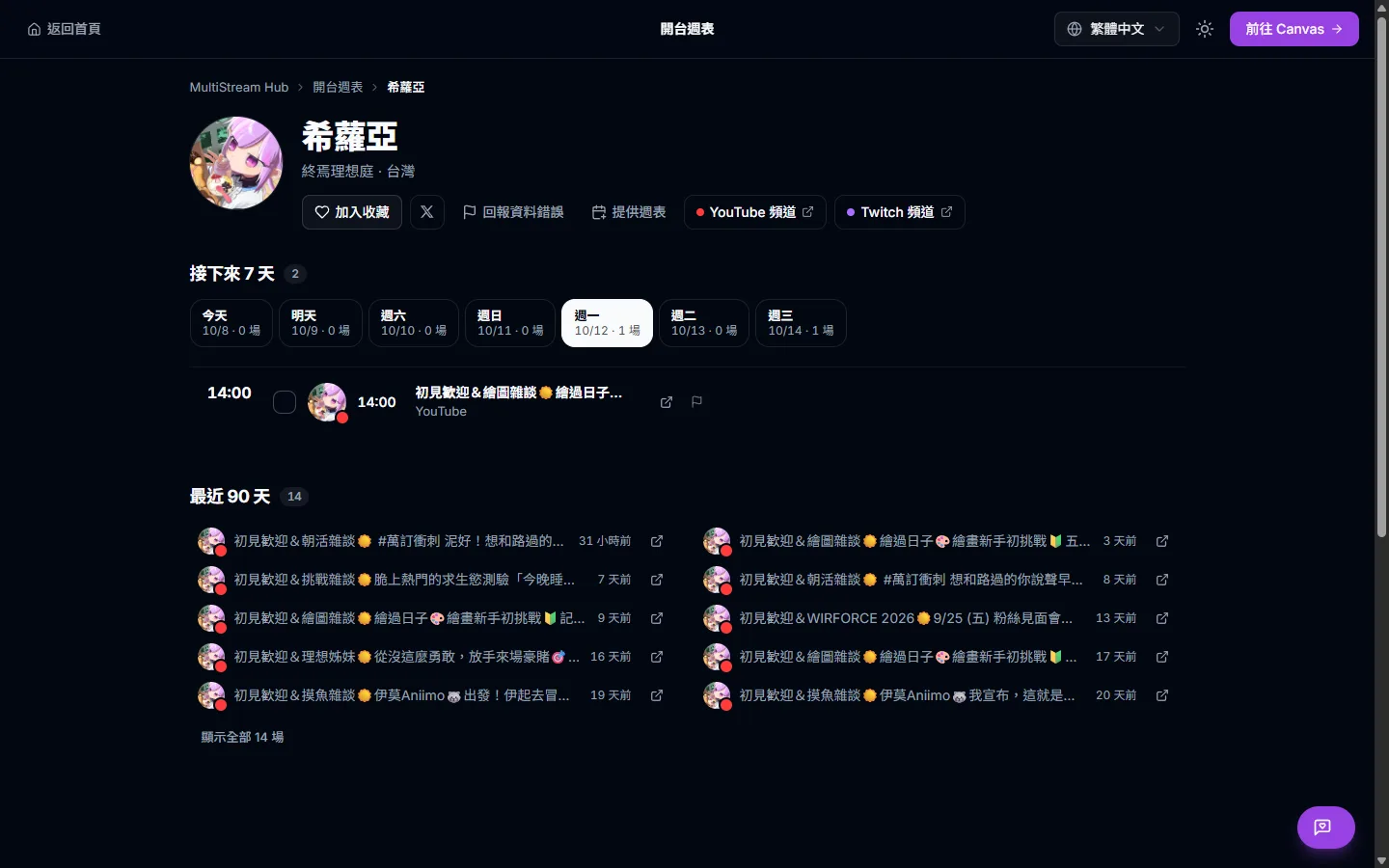
Personal pages refresh their data every 5 minutes. You can also favorite the streamer from here; switch the schedule to My favorites later to see only the people you follow.
The schedule only includes streams and schedules that actually exist on the platforms. There are three sources: YouTube channels’ live pages and waiting rooms, the list of Twitch channels that are live, and the schedules streamers set on Twitch. Times are never taken from social posts or schedule images.
Scheduled jobs check these sources in batches:
Ending a stream is judged more cautiously than starting one: a YouTube stream must be confirmed as ended in two rounds in a row before it moves to Just ended, so a brief network glitch does not end a stream that is still running. If a large number of streams (5 or more, and over half of those checked) appear to end in the same round, the system treats it as an anomaly and requires three rounds instead. On Twitch, a channel that is no longer in the live list counts as ended.
If a stream has the wrong time, still shows after being cancelled, or appears twice, press the flag icon (“Report this stream”) on its Live now card or Coming up row (phones hide the flag on timeline rows, so report from a Live now card or the streamer’s personal page). If a streamer’s details — name, agency, region, channel links or graduation — are wrong, or you want to add social links or a bio, open their personal page, press “Report an error” and tick “Add missing info (socials, channels, bio)”. If an agency roster is missing someone or lists someone who does not belong, use “Roster wrong?” on the roster panel.
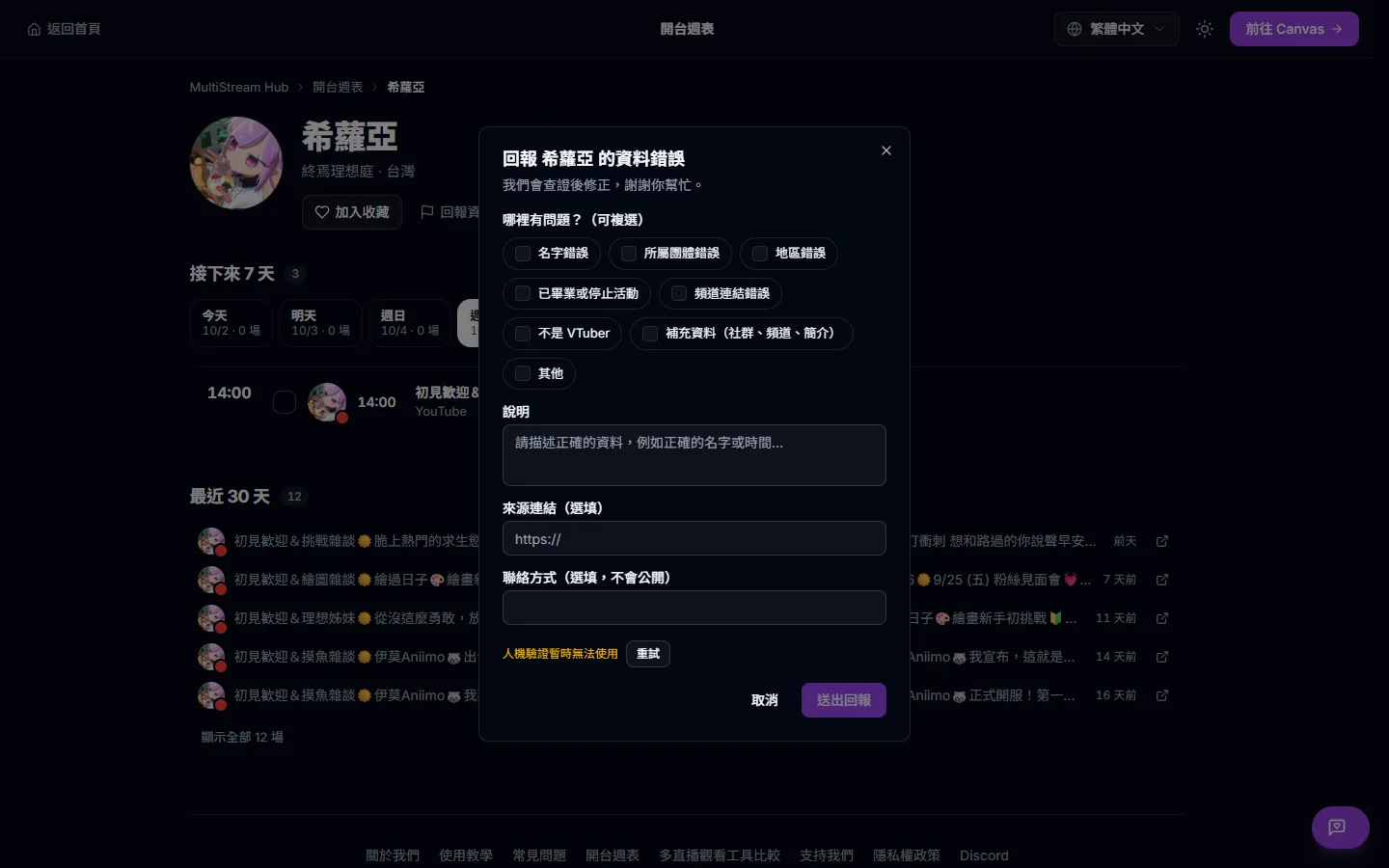
Reports require a quick human-verification check before sending, and we verify each report before changing anything. Adding a source link, such as the streamer’s announcement or the agency’s official site, speeds this up.
If a VTuber is not on the schedule, press “Add a VTuber” at the top of the schedule and paste their YouTube channel link — the name and avatar fill in automatically. Suggestions are added only after review, which usually takes a few days.
The external-link icon on a card opens the stream or waiting room on the original platform (on phones, timeline rows and Just ended rows hide this icon), and every personal page links to the streamer’s YouTube and Twitch channels. If the schedule and the platform disagree, trust the platform — and please report it so we can fix it.