All Articles
Basics
4 min read

Quick Start Guide: From Adding Streams to Auto Layout

New to MultiStream Hub? This guide walks you through adding your first stream from a URL, then searching channels, switching layouts, and integrating chat.

M
MultiStream Hub Team
Basics

Welcome to MultiStream Hub

In one sentence: it puts several Twitch or YouTube streams in a single browser tab so you can watch them together. Nothing to install, no account needed — open the page, paste a URL, and you are watching. Each section below covers one feature; working through them takes about ten minutes.

🚀 Getting Started

First time here? Walk through these six steps once and you will have the hang of it. No sign-in needed anywhere along the way.
  1. 1Click Get started on the home page to open the canvas (the /canvas URL). This is where you will be watching.
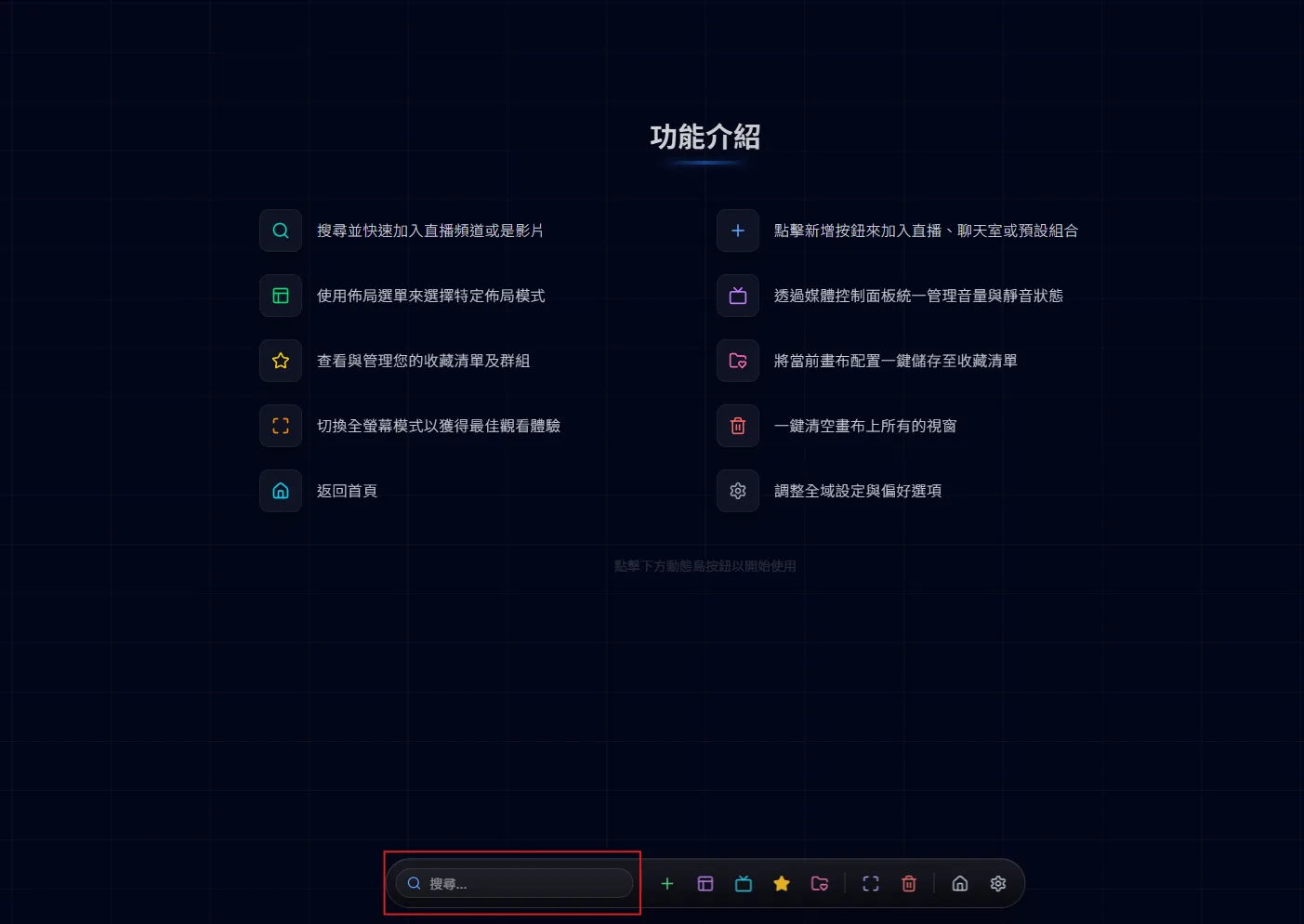
  2. 2Move your cursor to the very bottom of the screen — the dynamic island slides up. The box on its far left is the search box (Ctrl + K jumps straight to it).
  3. 3Paste a stream URL into the search box, or just type a streamer name. Pasting is quickest — both Twitch and YouTube URLs are recognised, and Enter drops it onto the canvas.
  4. 4Repeat for everything you want to watch. From the second one onwards the windows arrange themselves — you do not have to drag anything.
  5. 5Everything starts muted, so several streams do not talk over each other. Open media controls on the dynamic island and raise the volume on whichever one you want to hear.
  6. 6Happy with the line-up? Hit the share button on the dynamic island — the link is copied, and whoever opens it sees the same set of streams.
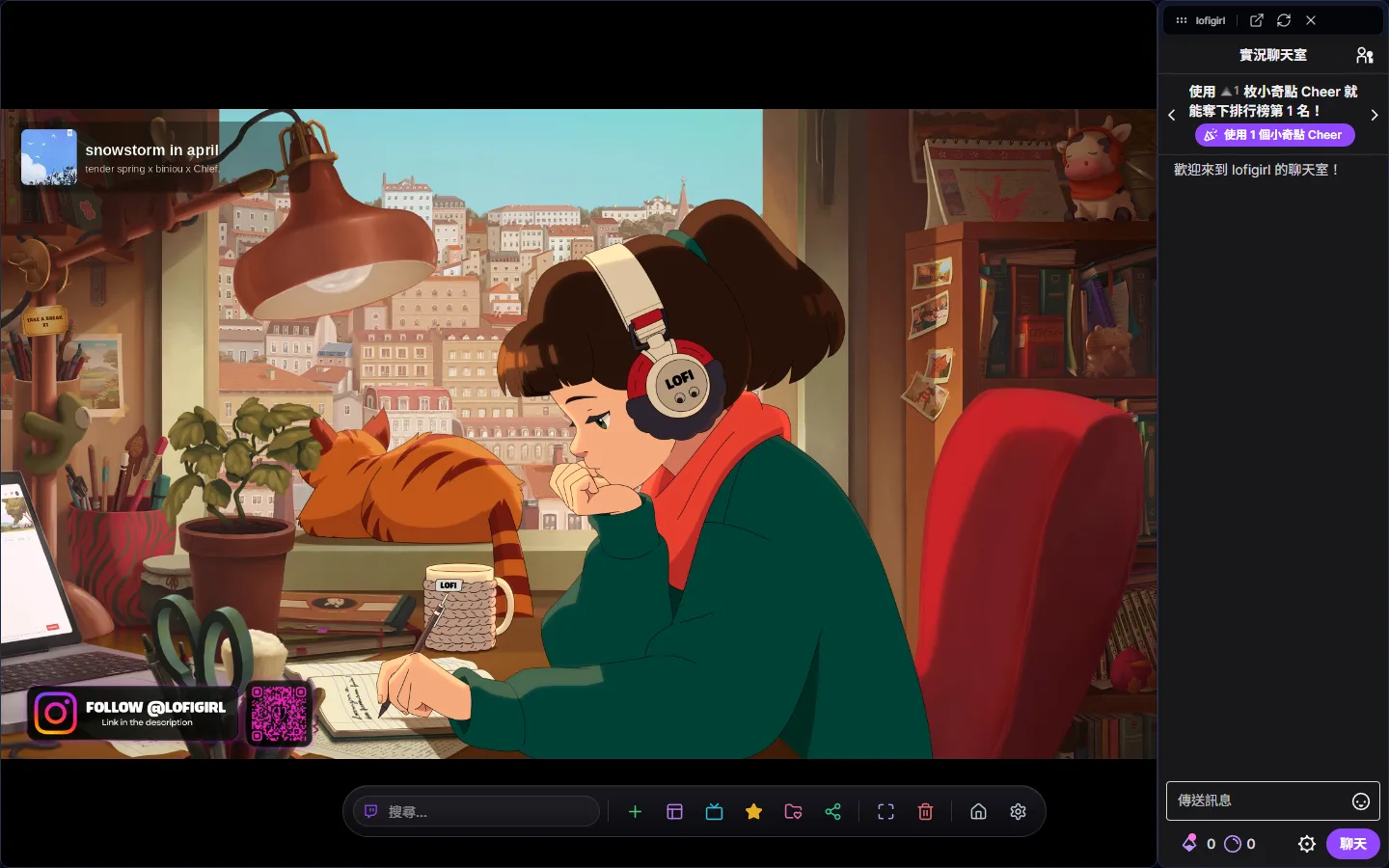
A canvas with one live stream and its chat, with the dynamic island along the bottom: search box on the left, a row of action buttons on the right
Move your cursor to the very bottom of the screen and the dynamic island slides up
Search bar location on the Dynamic Island (highlighted in red)
The search bar sits at the far left of the Dynamic Island
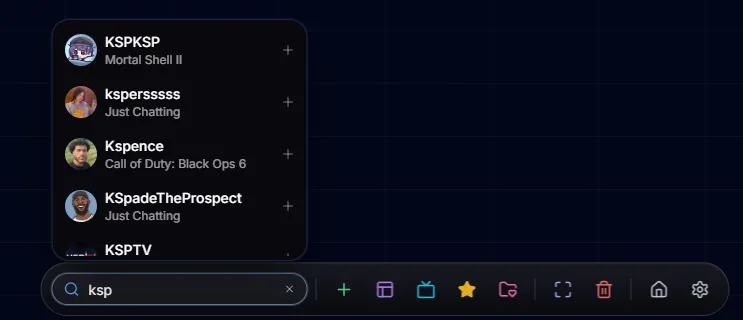
Live Twitch channel results shown while typing
Type a name to search instantly; click + to add to the canvas