The Canvas is your main workspace where all streams and chats reside. We designed a flexible grid system allowing you to arrange windows freely.
M
MultiStream Hub Team
Basics
Adding Windows
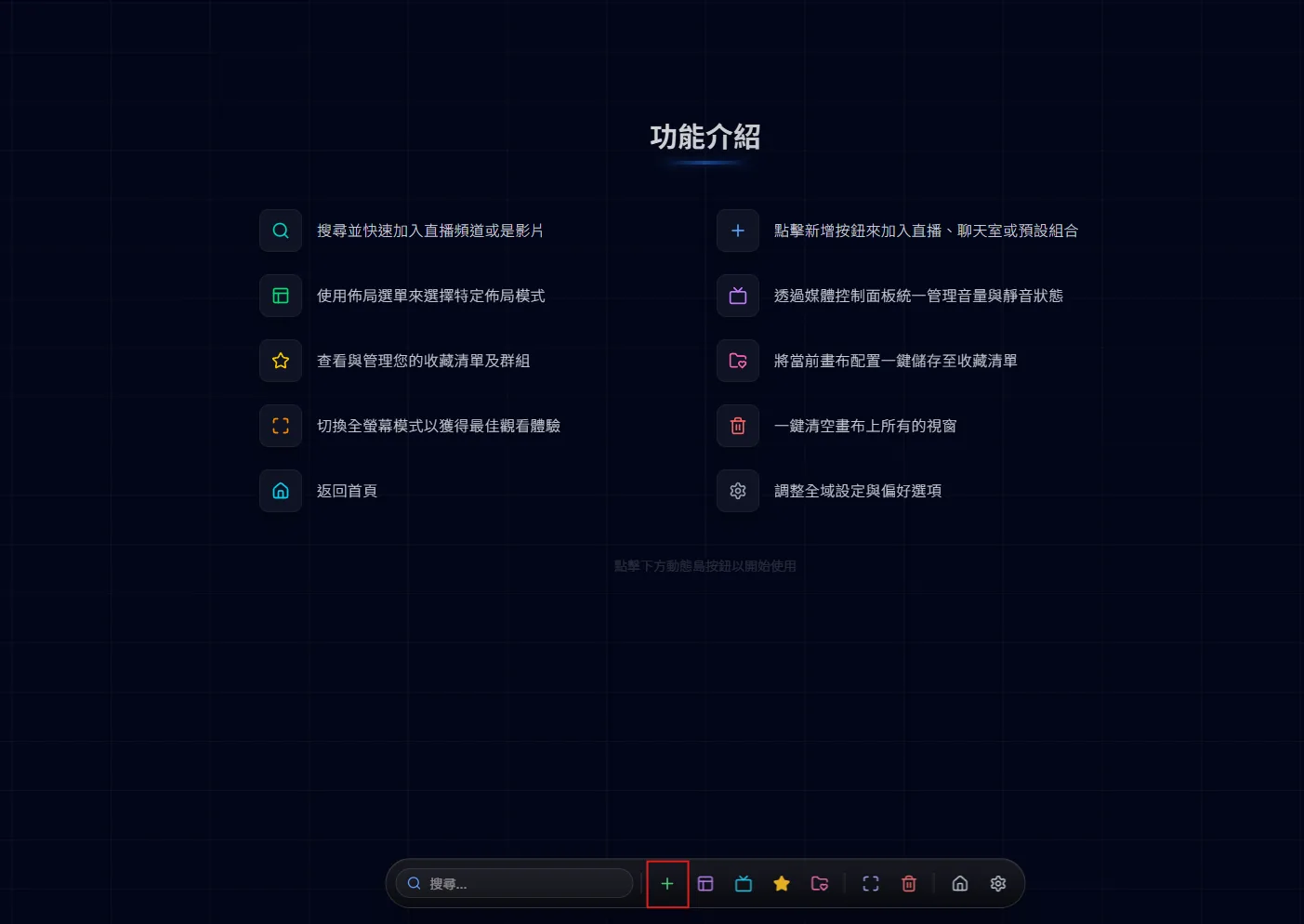
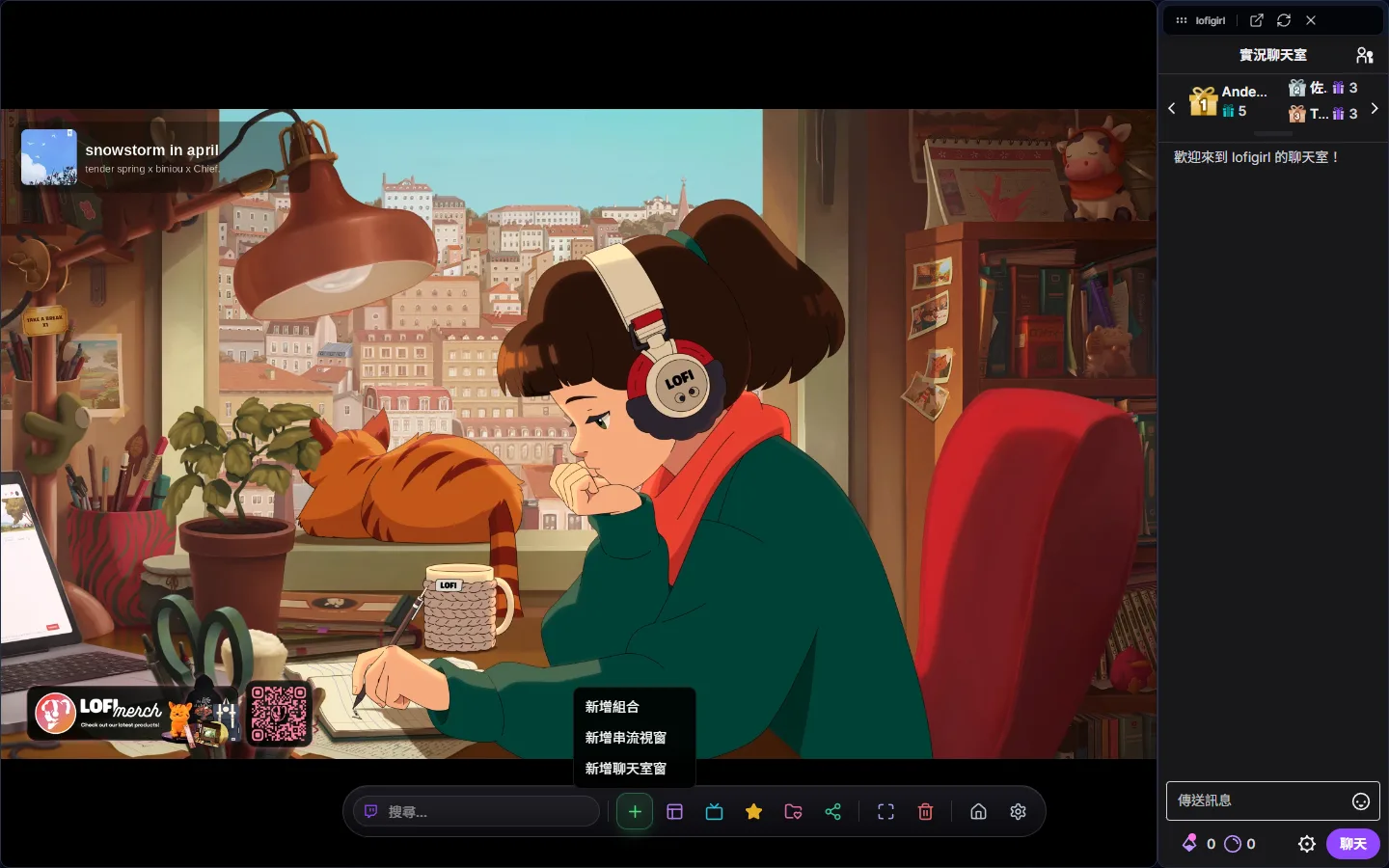
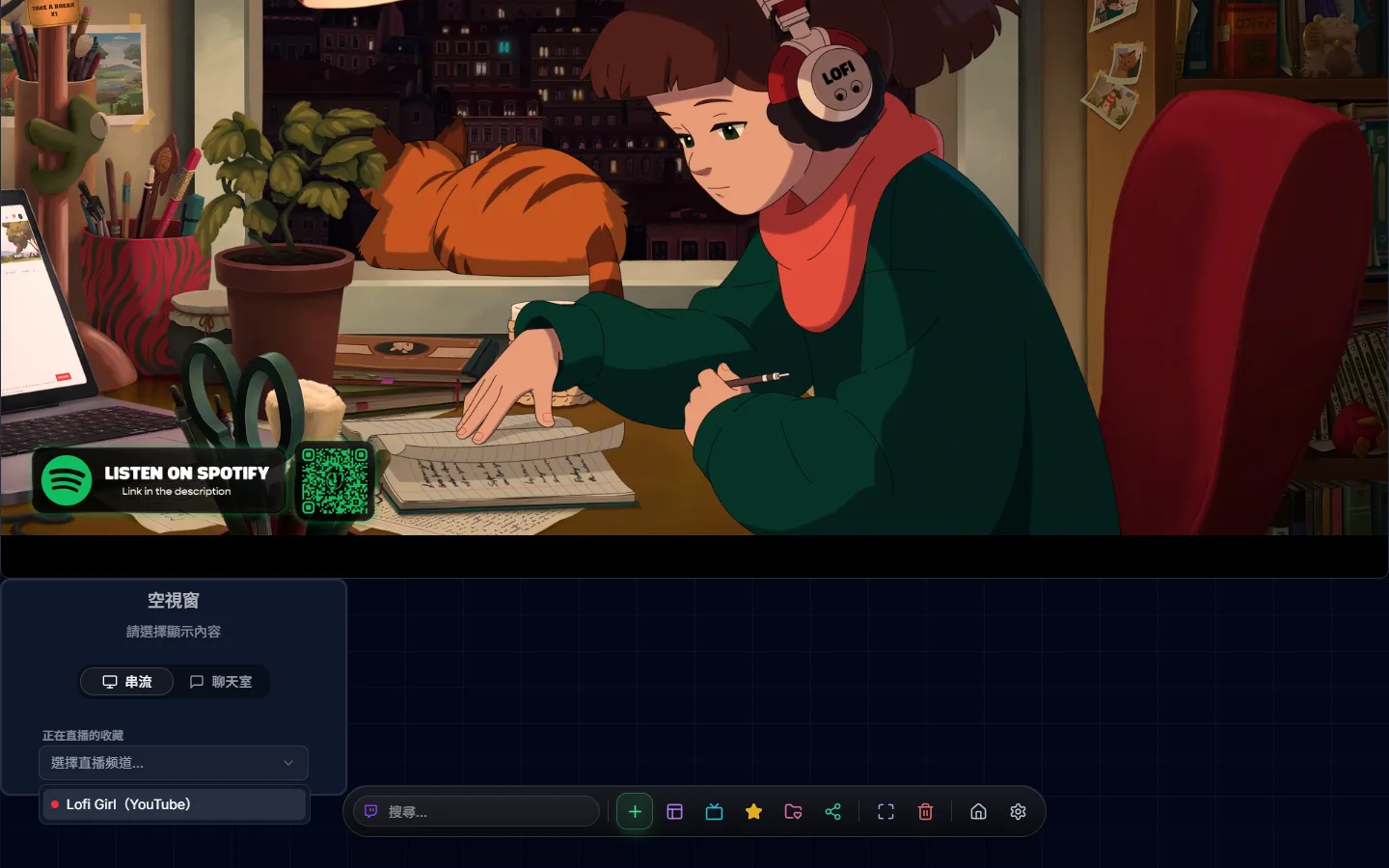
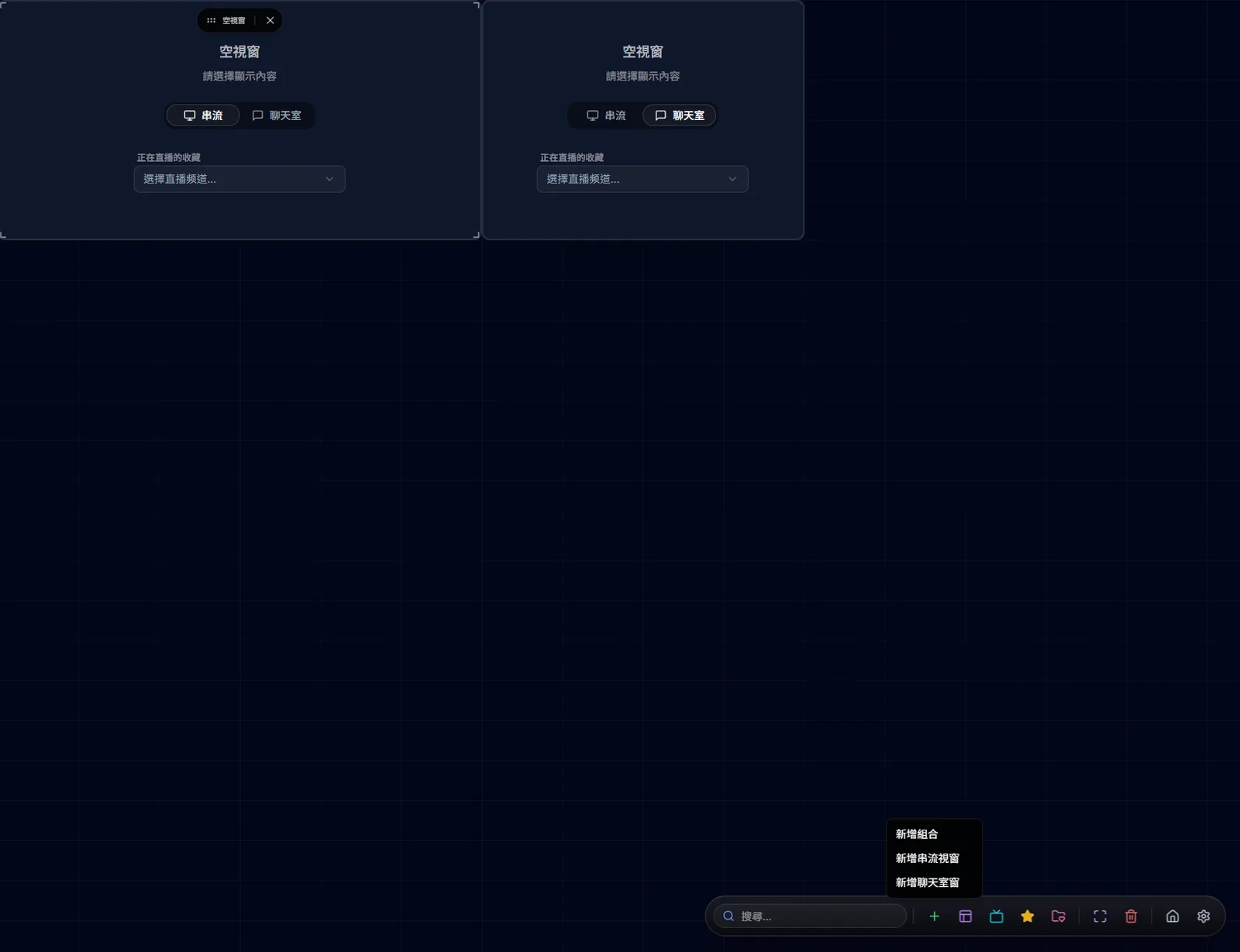
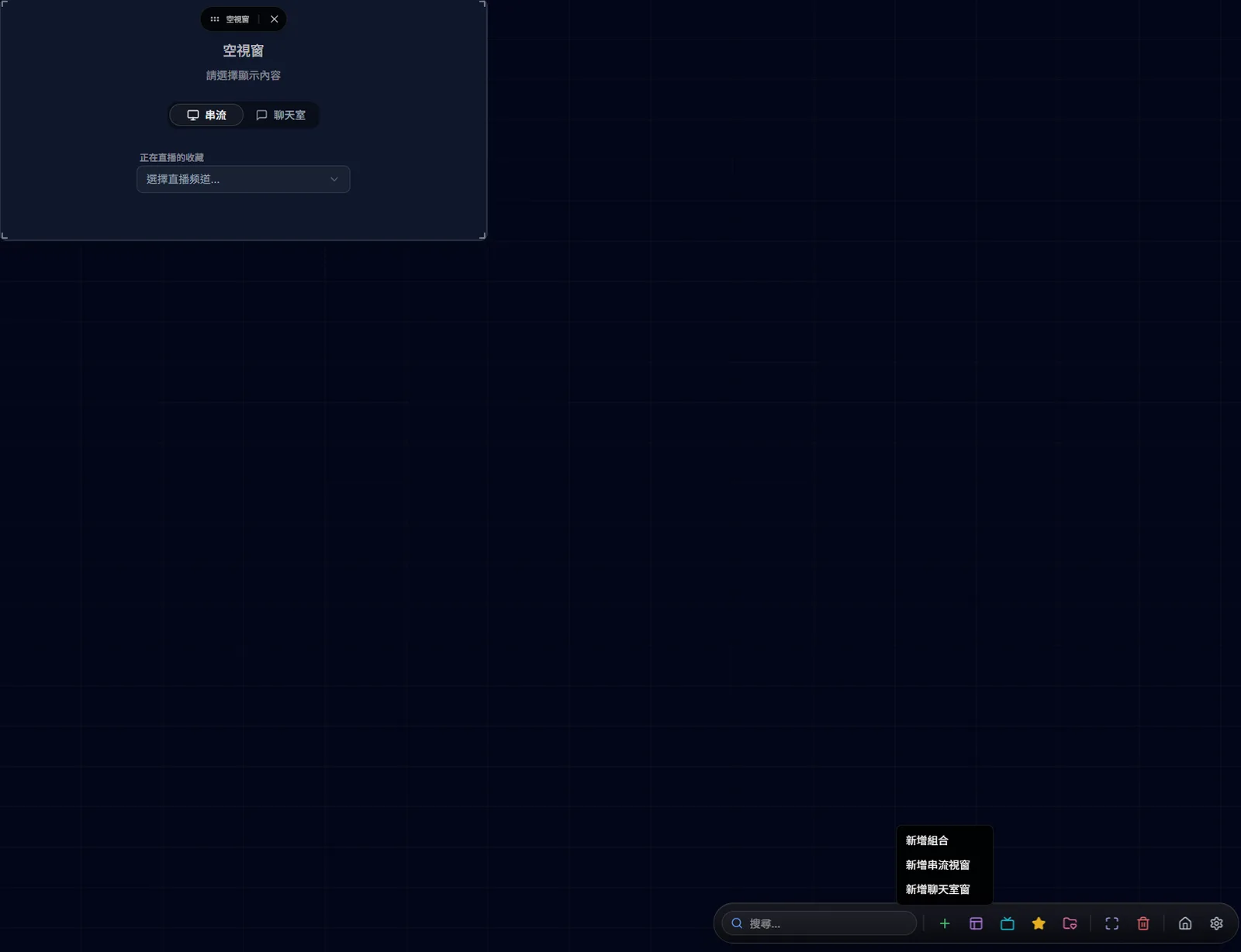
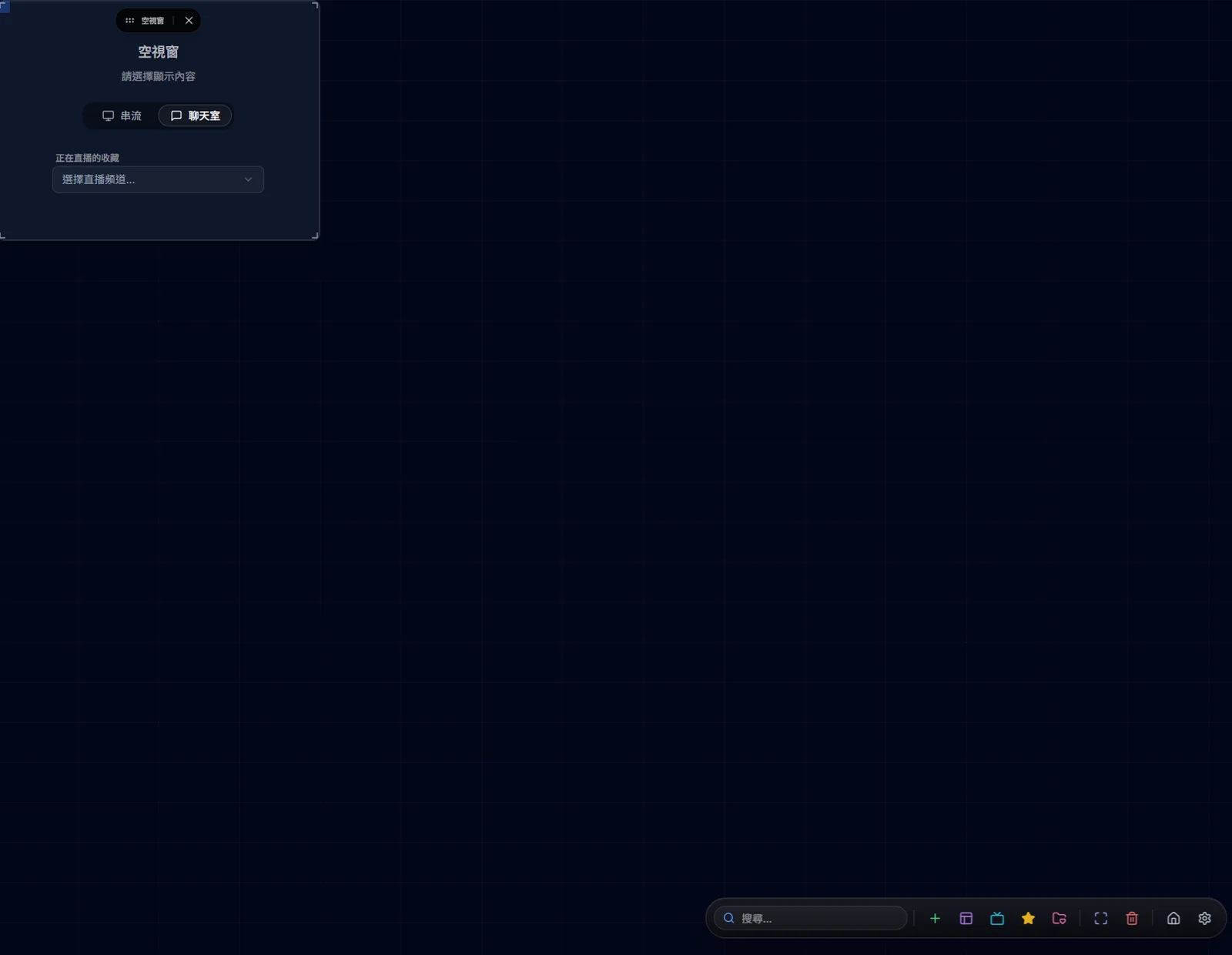
Click the + button on the dynamic island to add a combo (stream + chat), a stream window, or a chat window. Once the empty window appears on the canvas, switch it between Stream and Chat at the top, then pick a live favourite from the dropdown to start playing.
Click + to open the add menuClick + and pick which kind of window to addAn empty window plays nothing until you pick a channel from the dropdown"Add Combo" creates a stream + chat window pair at oncePick a channel directly from the "Live favorites" dropdownThe same empty window can also become a chat room
Auto Layout
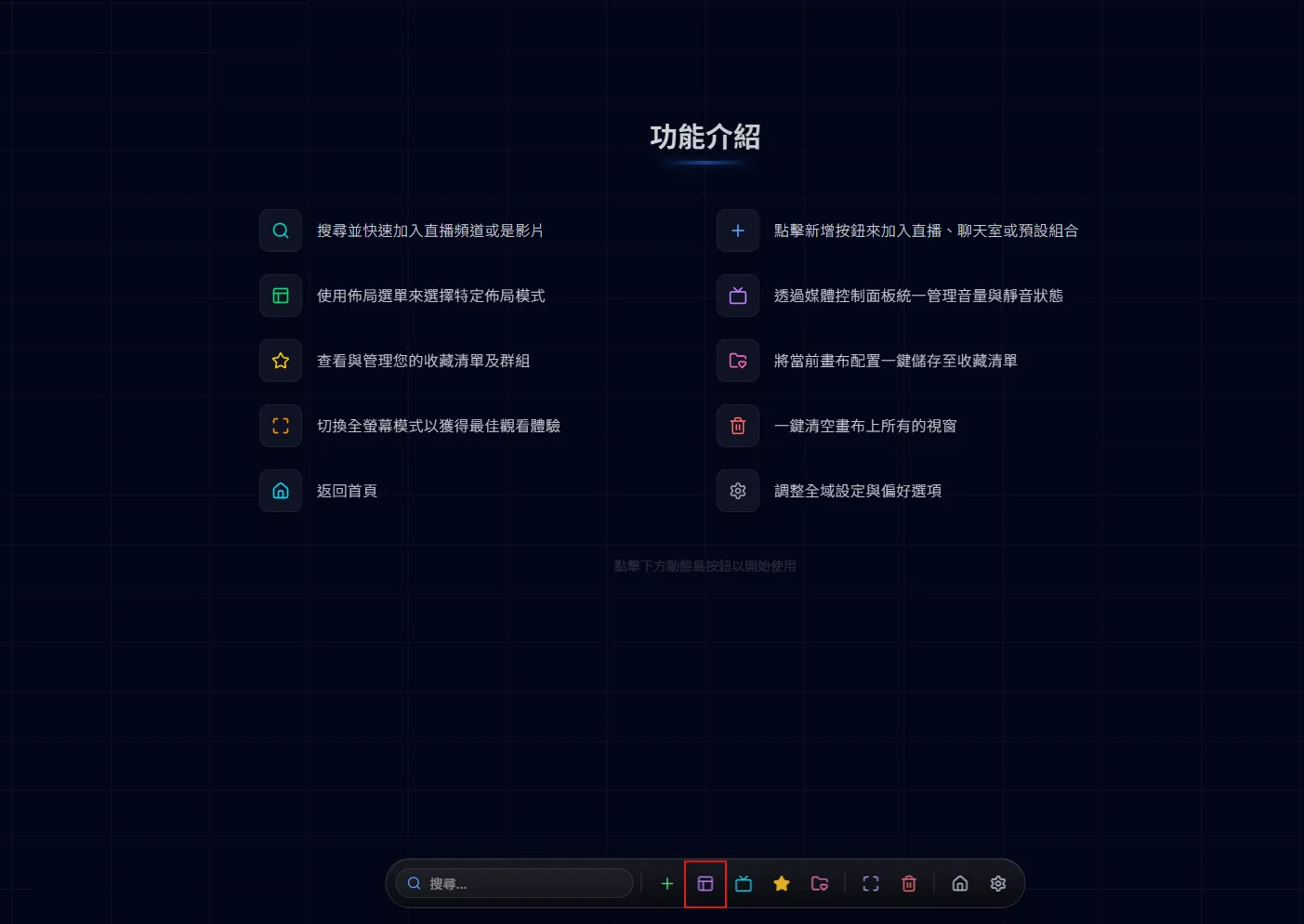
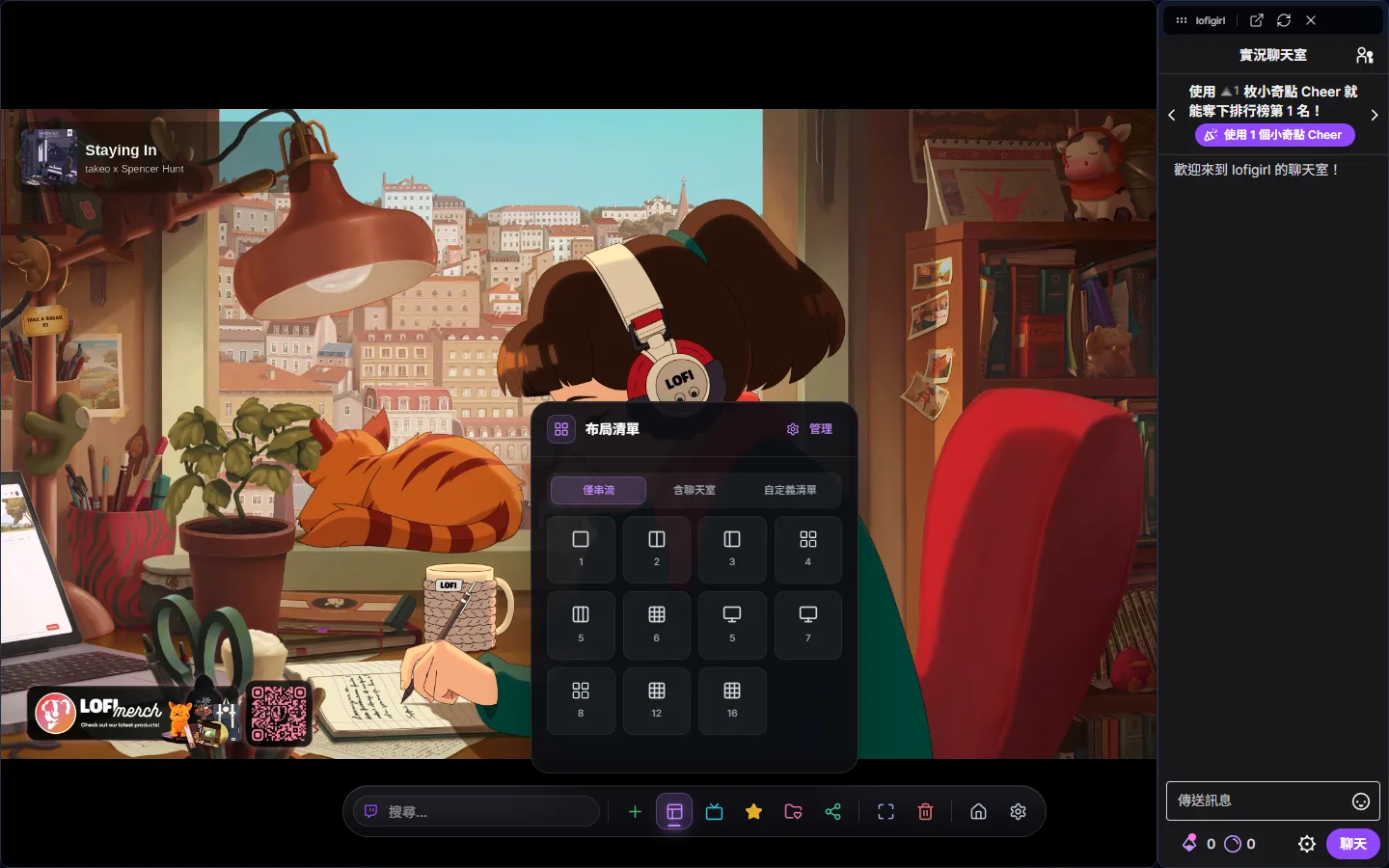
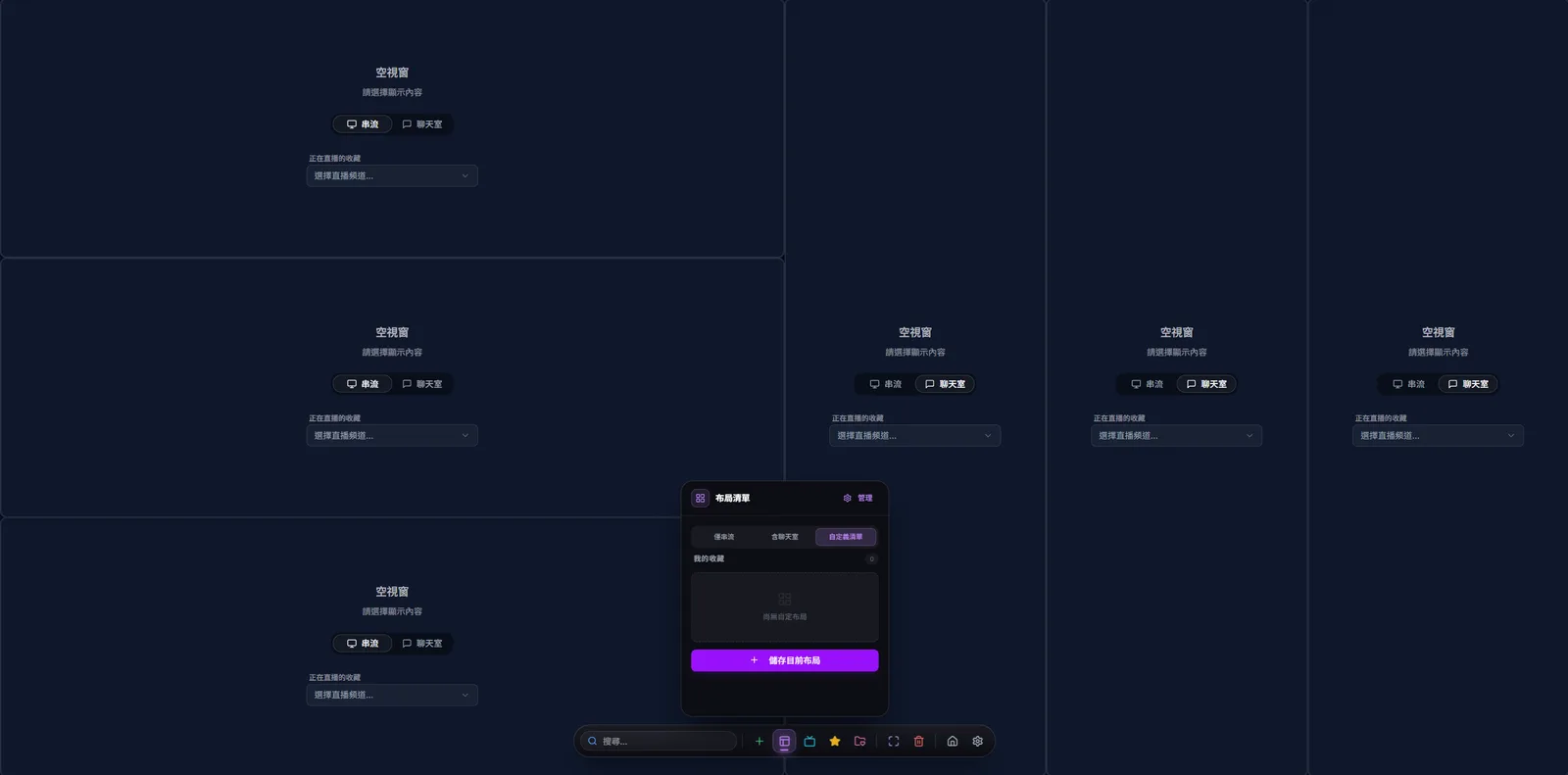
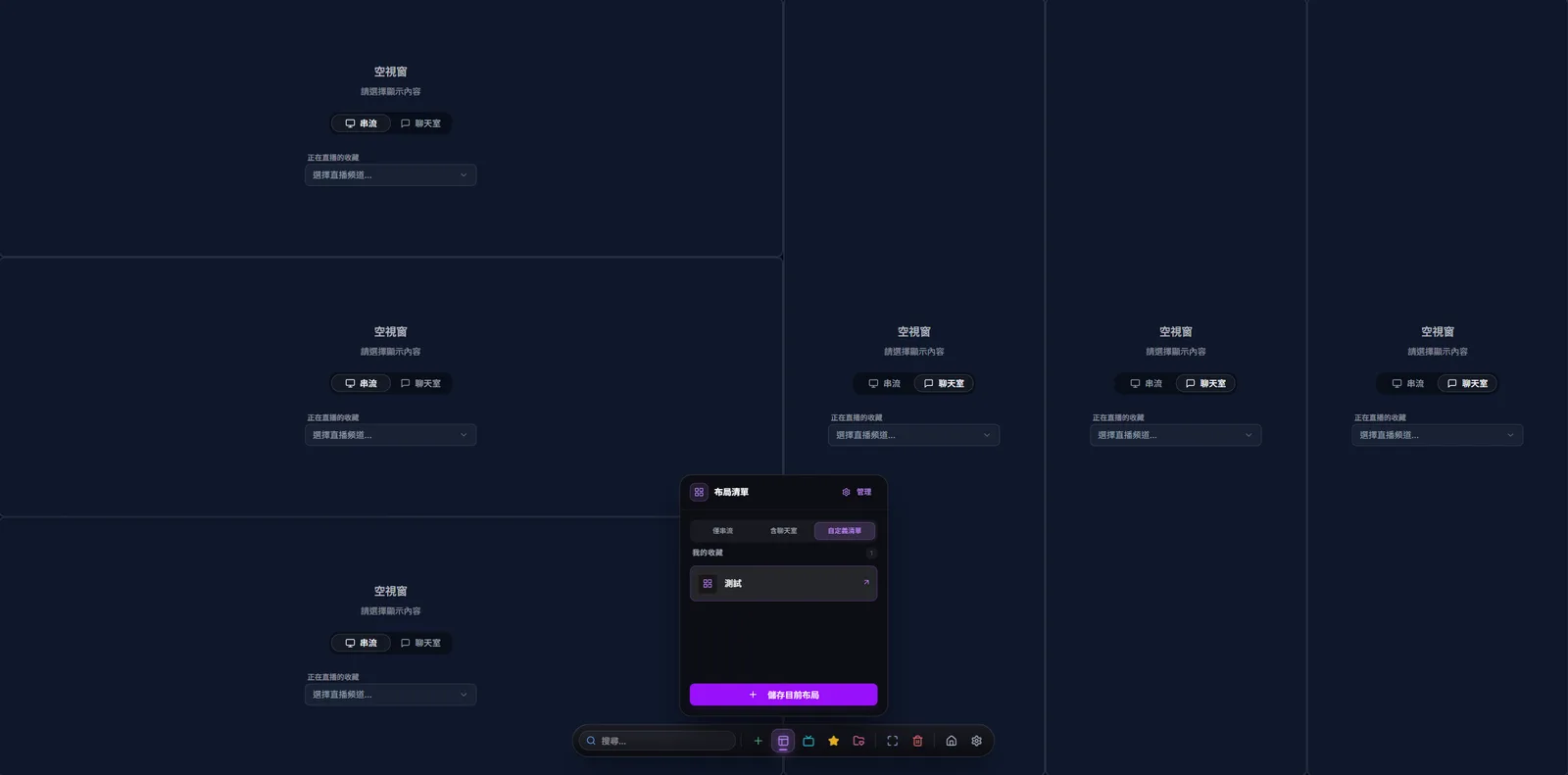
Not sure how to arrange things? Open the layout list from the dynamic island. It has three tabs — Stream Only, Chat Included and Custom — and picking a layout arranges every window on the canvas at once. Chat Included is split into two groups: One shared chat puts 2 to 4 streams next to a single chat on the right, while One chat per stream gives every stream its own chat. If a layout has more slots than you have streams, empty windows fill the gaps; if it has fewer, the extra streams are left off the canvas, so pick a layout with at least as many slots as streams.
Open the auto-layout menu from herePick a number and every window on the canvas is arranged at once
Drag & Drop
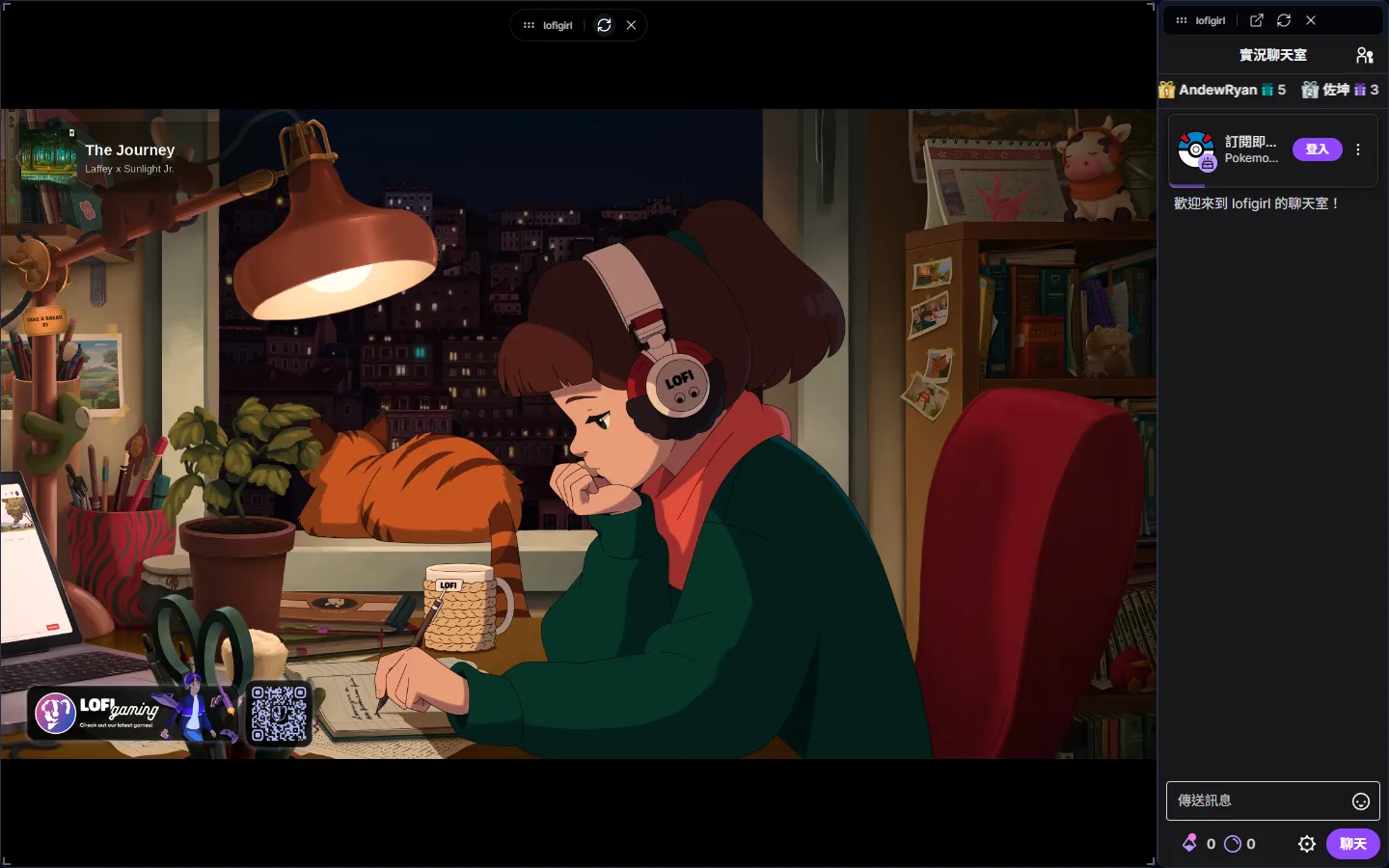
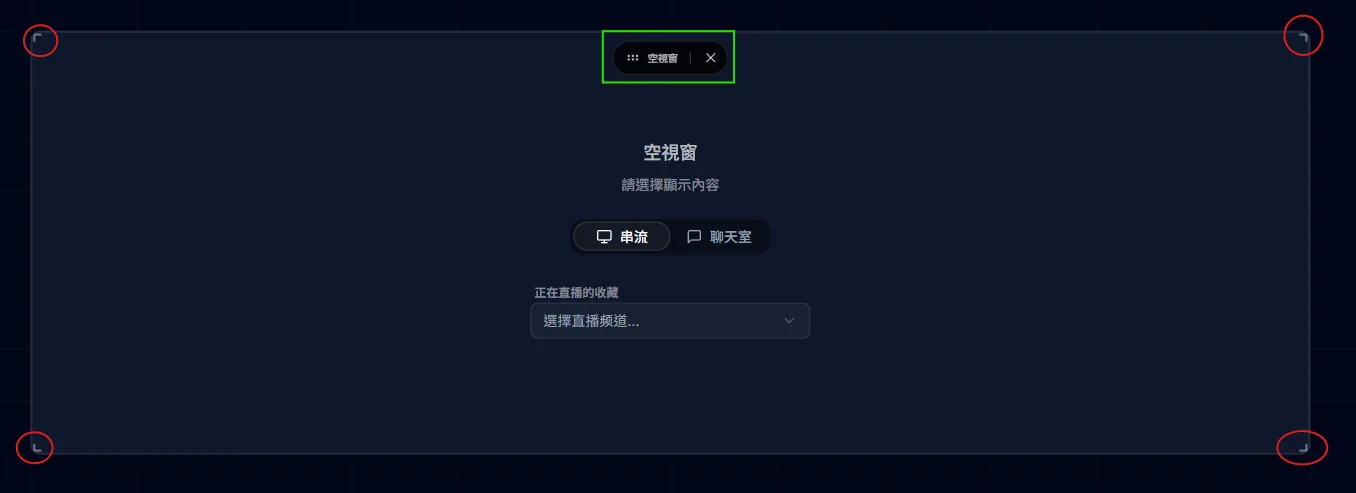
Hover a window and a pill-shaped toolbar floats above it; press and hold the grip on its left to drag the window — a purple dashed outline previews where it will land. To resize, grab any of the four corner handles; the grid size is shown in the middle while you drag.
Hold the grip on the far left to drag the window; the chat window on the right has one extra button, “Open chat in a new window”Green = drag handle; red circles = corner resize
Custom Layouts
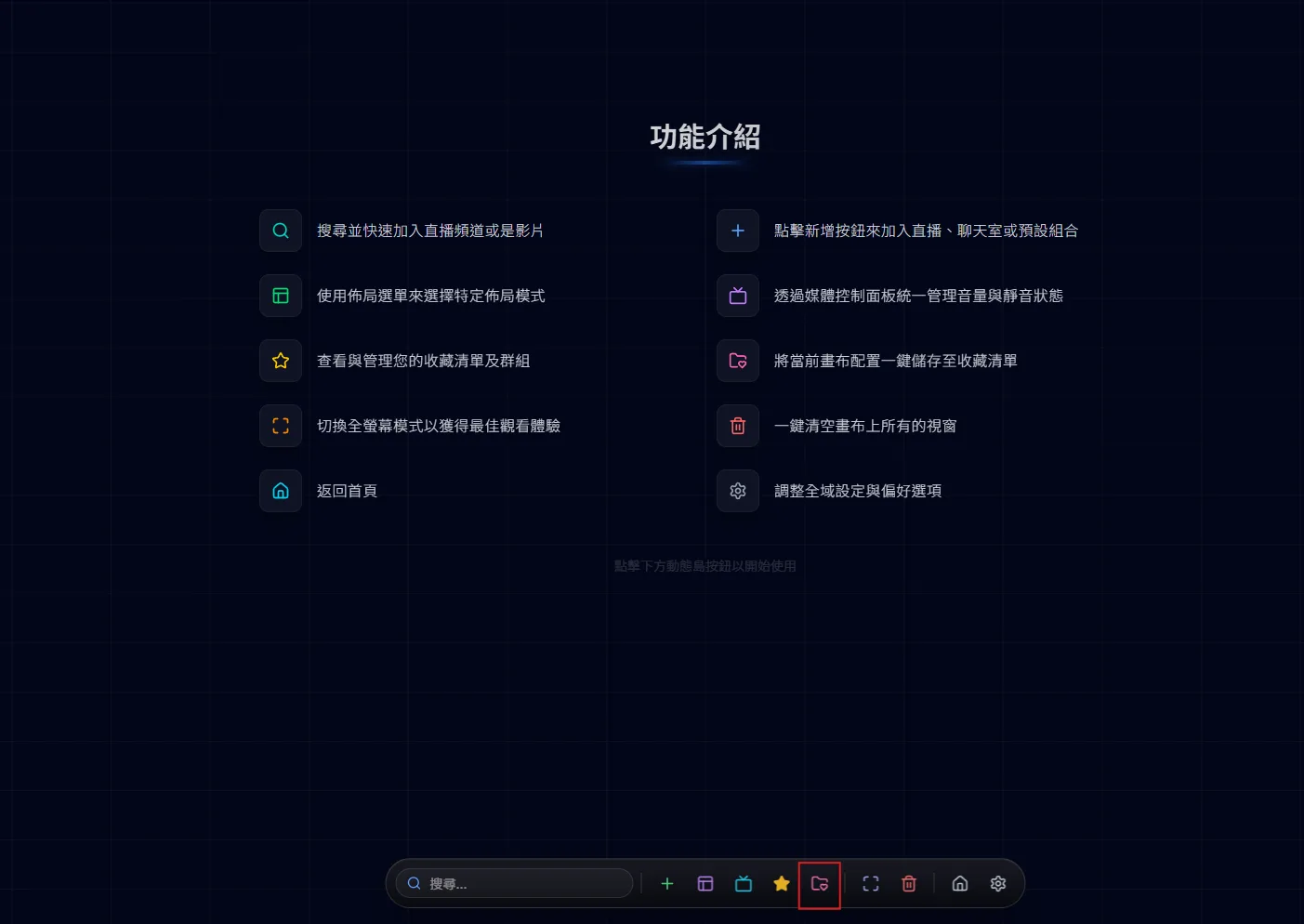
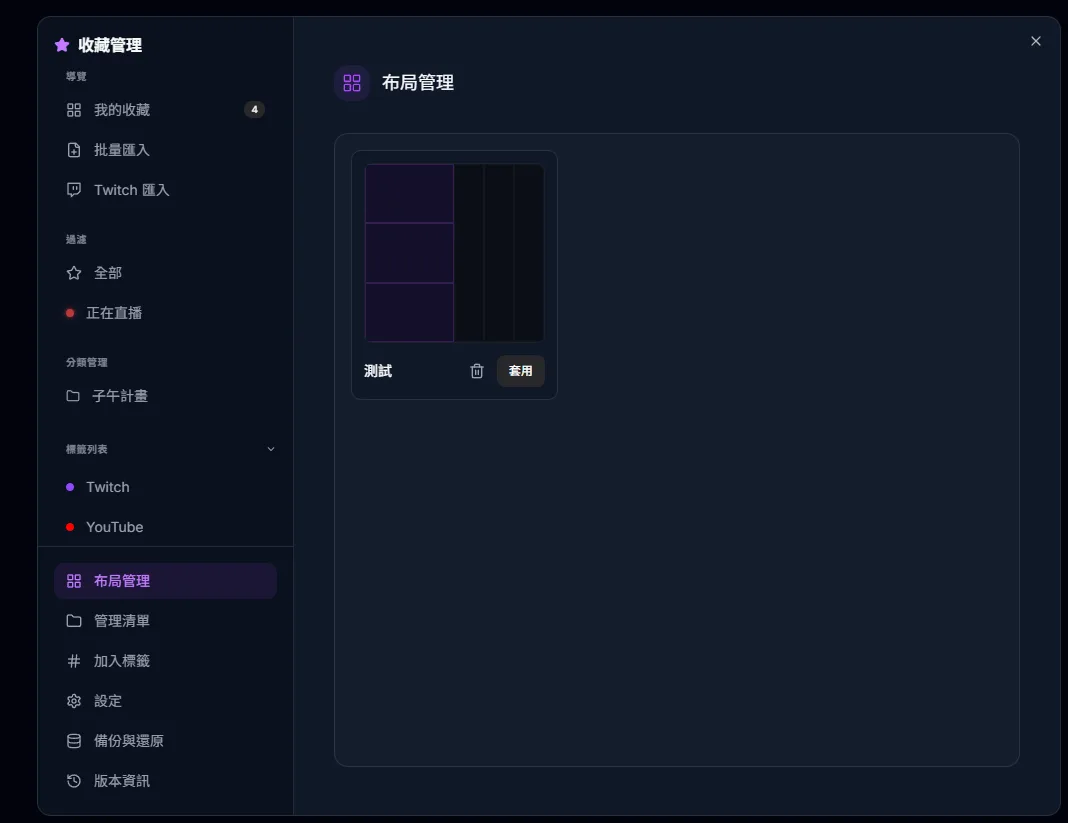
Once the windows are arranged the way you like, open the layout list, switch to the Custom tab and press “Save Current Layout” to name and keep it. You can apply or delete saved layouts from the same tab or from Favorites Manager → Manage Layouts at any time. Note that “Save current canvas” on the dynamic island saves each channel to your favorites — it does not save the layout.
Saves every channel on the canvas to your favorites, one entry each (it does not save the layout)Arrange windows, then press "Save current layout"Saved layouts appear in the custom listPreview thumbnails, then apply or delete saved layouts
Layout rules: swap, push and backfill
The canvas never lets windows overlap, which gives you three behaviours to know about. First: drop one window on top of another and the two swap places and sizes — the target lights up with a green ring before you let go, so wait for the ring. Second: as you enlarge a window its neighbours step aside; where they are going is drawn as a blue dashed outline first, and they only actually move when you release (they deliberately stay put while you drag, otherwise the video stutters). Third: close a window and the neighbours fill the gap it leaves, giving the extra room to video rather than to chat.
Worked example: four views of a match plus one chat
Say you are watching an esports match and want the official broadcast plus three players’ first-person views, keeping only the official channel’s chat. Here is how to set it up:
1Add the official channel and the three players’ streams to the canvas with the search box or by pasting their links.
2Open the layout list on the dynamic island, switch to Chat Included and pick the 4-stream layout in the One shared chat group. The four streams sit on the left and a full-height chat sits on the right.
3Use the “Stream shown in chat” drop-down above the chat to choose whose chat you see — here, the official channel.
4To make the official broadcast the biggest window, hover it and press the star (“Set as main”) on its toolbar. It swaps position and size with the current largest window.
5For a big team fight, hover a stream and press T (or “Maximize (T)” on the toolbar) to fill the screen with it; press T or Esc to restore. The other streams keep playing in the background.
6When you are happy with it, press “Save Current Layout” in the Custom tab of the layout list, and apply it again at the next match.
A custom layout stores only the position and size of each slot, not which channels were in it. To hand the same channels to a friend, use a share link (see “Share your canvas”).
Limits and things to know
1The canvas plays at most 16 streams at once. The limit counts streams, not windows — empty windows and chat windows do not count — and once 16 streams are playing, new ones are not added.
2The canvas is a 24-column by 24-row grid that scales with your browser window. A stream window is at least 6 × 6 cells; a chat window you resize yourself is 3 to 4 cells wide (some built-in layouts make it wider). If the layout grows past 24 rows, the canvas extends downward and scrolls.
3Chat Included layouts exist for 1, 2, 3, 4 and 6 streams (one chat per stream) and 2, 3 and 4 streams (one shared chat). There is no 5-stream layout with chat, so use Stream Only or arrange five streams yourself.
4Reloading or closing the tab clears the canvas. If you come back within 10 minutes, the canvas asks whether to restore your last session; after that it cannot be restored. Copy a share link first if you want to keep a line-up.
5Custom layouts are stored in this browser, so they disappear if you switch browsers or clear site data.
6Phones (screens 768 pixels wide or less) do not get the free-form canvas. Instead there are four tabs — Watch, Chat, Favorites and Settings: in portrait, streams stack vertically and one chat is shown at a time.
Troubleshooting
1Several YouTube streams stutter: the YouTube player is heavy, so playing 2 or more at once shows a yellow “YouTube Stream Count Warning”, turning red at 4 or more. Press “Pause Others” to keep just one playing, or watch the Twitch version when a streamer is live on both platforms.
2The computer slows down: when the tab has been in the background for more than 30 seconds, Twitch streams drop to the lowest quality to save resources and recover when you come back. There is no site-wide quality setting — lower the quality from each player’s own gear menu. Press F3 to open a performance panel showing the browser’s frame rate and memory use (memory is shown in Chrome only).
3A YouTube window shows an error screen: some uploaders do not allow their videos to be embedded on other sites. Those can only be watched on YouTube, and we cannot work around it.
4Twitch will not play in Brave: Brave’s privacy protection makes Twitch refuse playback. MultiStream Hub shows a notice when it detects Brave; the fix is in the FAQ under “Twitch Not Working on Brave Browser”.
5You cannot send chat messages: use “Open chat in a new window (use if you cannot send messages)” on the chat window to open the platform’s own chat.
6One stream is frozen: hover it and press R (or “Reload (R)” on the toolbar) to reload only that stream without touching the others.
New to MultiStream Hub? This guide walks you through adding your first stream from a URL, then searching channels, switching layouts, and integrating chat.
How to use the Taiwanese VTuber stream schedule, what each card means, where the data comes from and how often it updates, and which streams can be missing or late.